 Zylcut
Export
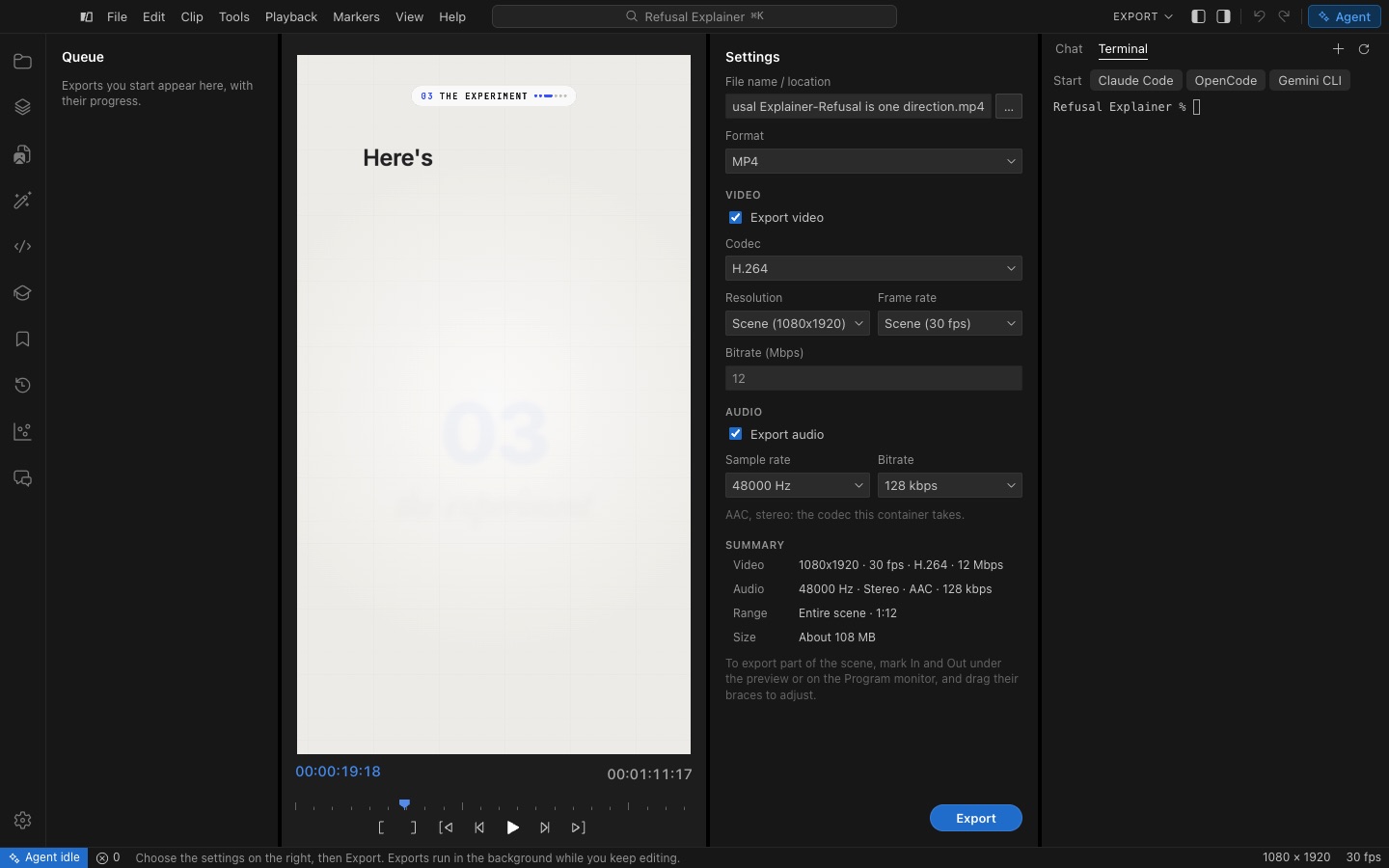
File > Export Scene… opens the Export page. Choose the format (MP4, QuickTime, WebM or Ogg), the codec (H.264, HEVC, AV1, VP9 or VP8), resolution, frame rate, bitrate and audio settings; the summary shows the result and its size before you start. The range is the scene’s work area: to export part of the scene, mark In and Out. Exports run in the background and appear in the queue while you keep editing.
To upload the result to YouTube from the same page, see Publishing to YouTube.